Sequoia is composed of a dark background with neutral gray tones for the editor and terminal areas, with subtle highlights in blue for active tabs and buttons, offering a comfortable and modern coding environment.
See other interfaces at the official website.
- Open Extensions sidebar panel in VS Code.
View → Extensions - Search for
Sequoia - Click Install to install it.
- Code > Preferences > Color Theme — pick a Dark or Light variant:
| Dark | Light |
|---|---|
| Sequoia Moonlight Dark | Sequoia Moonlight Light |
| Sequoia Monochrome Dark | Sequoia Monochrome Light |
| Sequoia Retro Dark | Sequoia Retro Light |
Legacy names Sequoia Moonlight, Sequoia Monochrome, and Sequoia Retro still work for existing installs.
The theme is available for editors; shells, UI's and more coming up. Checkout the website
| Dark | Light |
|---|---|
| Sequoia Moonlight Dark | Sequoia Moonlight Light |
| Sequoia Monochrome Dark | Sequoia Monochrome Light |
| Sequoia Retro Dark | Sequoia Retro Light |
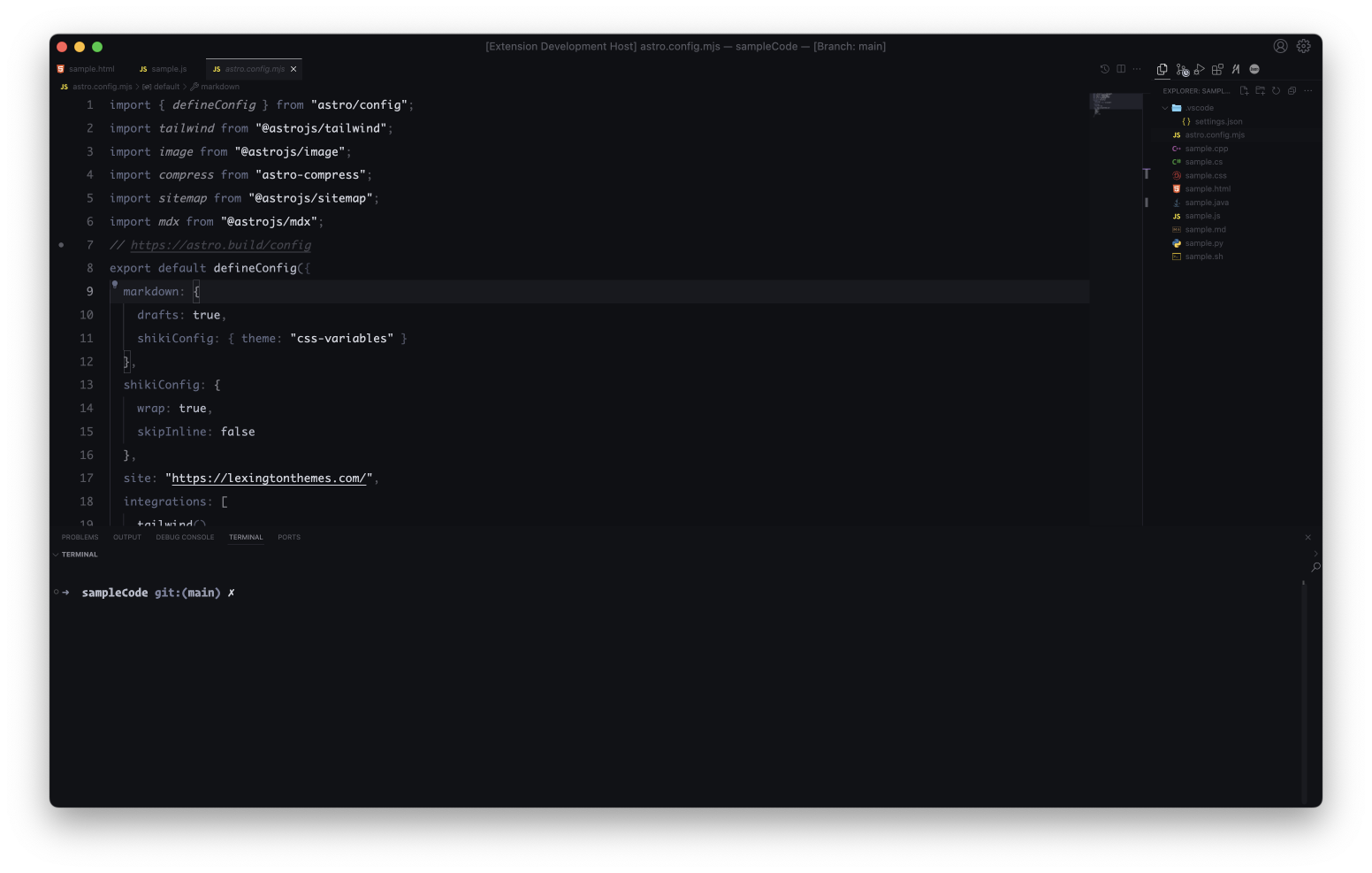
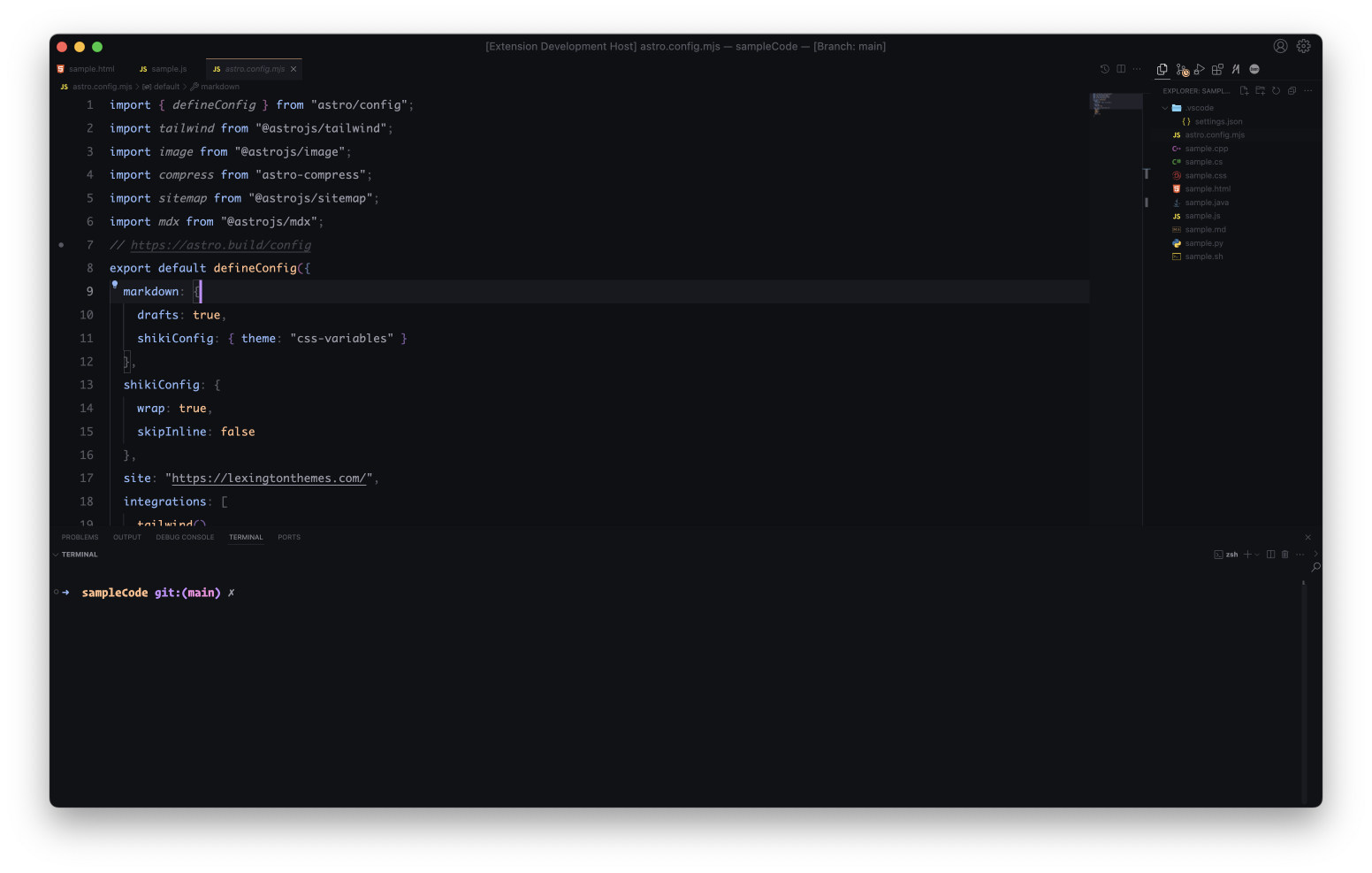
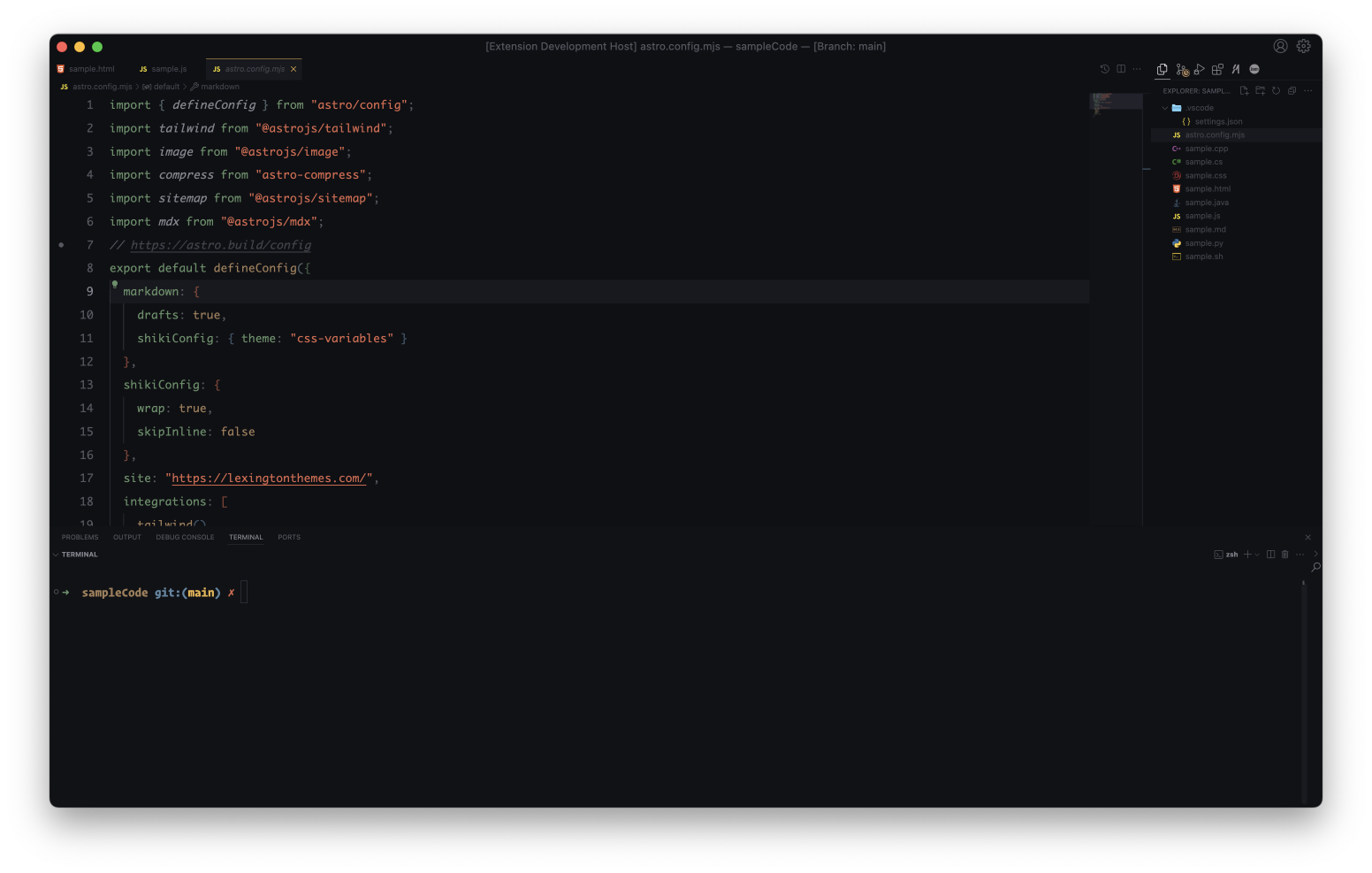
You have three themes, Monochrome, Moonlight & Retro and here the screenshots:
{

  "editor.fontFamily": "'IBM Plex Mono', monospace",
  "editor.fontSize": 18,
  "editor.lineHeight": 38,
  "editor.letterSpacing": 0.5,
  "files.trimTrailingWhitespace": true,
  "editor.fontWeight": "normal",
  "prettier.eslintIntegration": true,
  "editor.cursorStyle": "line",
  "editor.cursorWidth": 5,
  "editor.cursorBlinking": "phase",
  "editor.renderWhitespace": "all",
}
All themes use italics for certain language tokens by default.
To disable italics for all themes, add this snippet to your settings.json:
- quotes and italic strings (like in markdown) will be unaffected and still be italic
- if you want to exclude one of the themes from this change, simply remove its name (along with the brackets
[]) at the top of the snippet